Kindle Highlights: Where to Find Them and How to Keep the Best Ones
On this page
Your Kindle highlights live in three places: inside each book on your Kindle, in the same book's Notebook in the Kindle app, and online in your Kindle notebook on Amazon's site, as long as Sync is on. Once you have found them, pick the few lines worth keeping and copy them into a reading journal with the page or location and a tag, so they are easy to find long after you have moved on to the next book.
This guide shows where to look on each device, what to check if highlights seem to be missing, and how to turn a long list of highlights into a short quote log you will actually read again.
On your Kindle
Amazon describes a consolidated view inside each book that lists your highlights and notes in one place. Open the book, tap the top of the screen to open the toolbar, then tap the notebook icon. On some menus you will find the same list under Go To, in the Notes tab.
Tap any item in the list and the Kindle takes you to that spot in the book, which is handy when you want to read the lines around a highlight before you decide to keep it.
In the Kindle app
In the Kindle app on iPhone or iPad, tap the screen while reading and choose the Notebook icon. On Android, tap the screen, open the More menu and choose Notebook. You get the same list of highlights and notes for the book you have open.
If you read in a browser with Kindle for Web, there is a Notebook there too: move your pointer to the top of the page to show the menu bar, then click the Notebook icon. All your highlights, notes and bookmarks for that book are listed, and clicking one takes you to its page.
Online, in your Kindle notebook
Amazon also keeps an online notebook where you can view and edit your notes and highlights from any browser, and search your books by title or author. Amazon's own links send you to read.amazon.com/kp/notebook in the US, and its UK pages give read.amazon.co.uk/notebook.
This is the easiest place to work from when you are choosing lines to keep: a big screen, one book at a time, and no risk of losing your place in what you are reading now.
If highlights seem to be missing
Check Sync first. Amazon's help explains that Sync backs up your reading position, notes and highlights to Amazon's servers, which is how they reach your other Kindle apps and devices. With Sync turned off, some features stop working, including Export/Share for notes, and notes or highlights made while Sync is off may be lost when you turn it back on.
So if a book's list looks shorter than you remember, open the settings on the device where you read it and make sure Sync is on. And for the lines that really matter to you, keep a copy of your own, written somewhere you control.
Pick the lines worth keeping
A long book can leave you with dozens of highlights, many made in the heat of a chapter. Go through the list once after you finish and keep only the few that still land. Ask of each one:
- Does it still hit on its own? Read it out of context. If it needs three pages around it to make sense, leave it.
- Does it sum up a character or the couple? These are the lines you will want when you reread or recommend the book.
- Did it make you stop reading? The ones you read twice before you could turn the page.
- Is it short? One to three sentences is plenty.
Three to five lines per book is a good target. The rest are not lost; they simply stay in your Kindle notebook instead of your collection.
Copy them into a quote log
For each line you keep, write down three things:
- The quote, word for word. Copy carefully, punctuation included.
- Where it is. The page number, or the location if that is what your Kindle shows for the book.
- A tag. One or two words for why you kept it, such as swoon, banter, gut punch or found family.
The tag is what makes a quote log useful later: one search and you have every line that made you swoon. Our guide to saving book quotes goes deeper on choosing tags you will actually use.
Copying by hand sounds slow, but five lines take a few minutes, and choosing them is half the pleasure. It is also the moment a highlight becomes a memory of the book. If you want to write a little around them, our reading journal ideas include prompts that start from a single line.
When you share a line
Keeping a private collection of lines you love is just reading. If you post one, keep it short, name the book and the author, and let the line do the work. A sentence is a recommendation; a page is something else.
How Cherry Books handles it
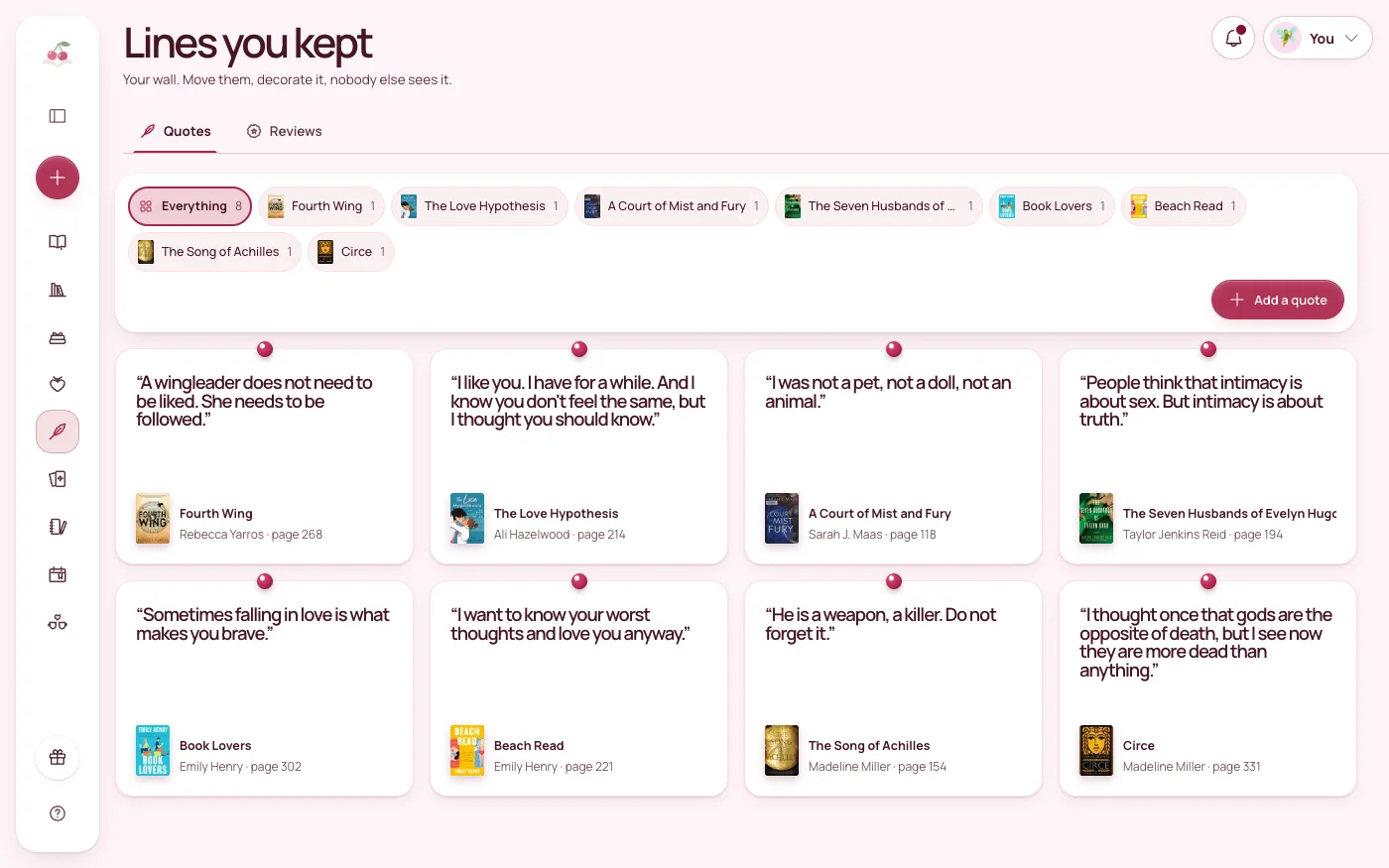
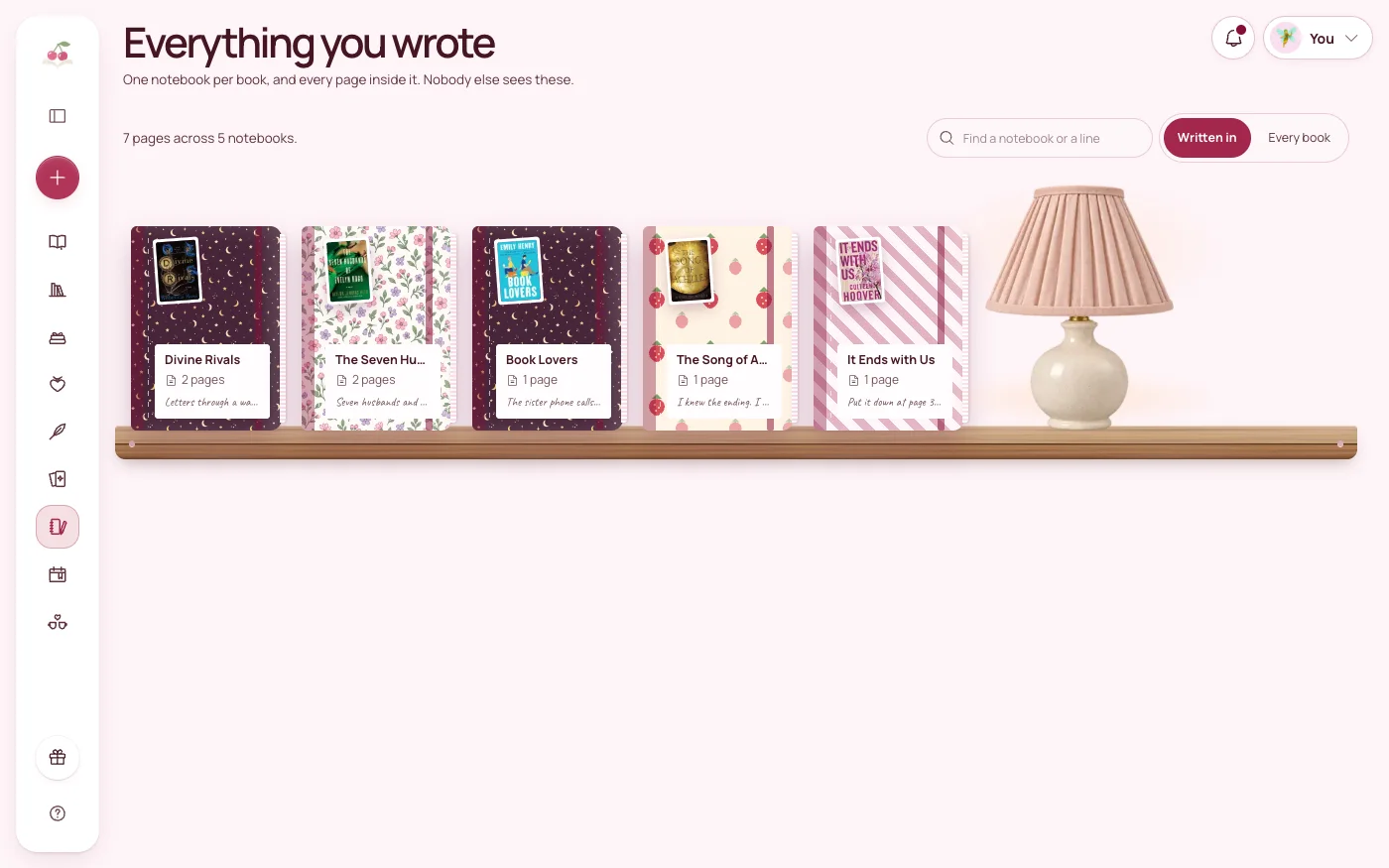
Cherry Books does not import Kindle highlights. Quotes are added by hand: open the book, add the line to your quote wall with its page, and it is pinned there beside every other line you kept, with the book it came from. Each book also has its own notebook for the thoughts around the quote.
When you want to share a line, story cards and video templates turn it into a post for bookstagram or BookTok. Everything you write is private. If your quotes are scattered across screenshots and notes apps, our guide to a digital reading journal shows how to bring them together.
The short version
- On a Kindle: open the book, tap the top of the screen, tap the notebook icon.
- In the Kindle app: tap the screen and choose Notebook.
- Online: your Kindle notebook, at read.amazon.com/kp/notebook in the US.
- Missing highlights? Check that Sync is on.
- Keep three to five lines per book, each with its page or location and a tag.
A highlight is a reaction in the moment. A quote you chose and kept is part of the story of your reading.
Try Cherry Books free for 7 days
Keep your notebooks, quotes, TBR and reading progress together. A payment card is required for the 7-day subscription trial. Cancel before the trial ends to avoid a charge; the monthly plan is $7.99 after the trial.
Keep reading
How to Save Book Quotes and Actually Find Them Later
Save the lines you love with the book, the page and a tag, so you can search your quotes later instead of scrolling a notes app for ten minutes.
How to Start a Digital Reading Journal (and Actually Keep Using It)
Learn how to make a digital reading journal you'll enjoy using, with simple layouts, book notes, quotes, and reading reflections.
21 Reading Journal Ideas That Make Every Book More Memorable
Looking for reading journal ideas? Try 21 simple, creative prompts for book notes, favorite quotes, tropes, monthly wrap-ups, and more.