Choosing a Book Tracker App for iPhone: What Actually Matters
On this page
A good book tracker app for iPhone lets you log a page in a few seconds, keeps working when you have no signal, has room for the details you actually care about, and lets you take your data with you. It does not have to come from the App Store: a web app added to your Home Screen from Safari opens from its own icon, without the browser bar, just like an app.
This guide covers what to check before you choose, how to add a web app to your Home Screen, and how to test offline and laptop use before you trust a tracker with a year of reading.
What to look for
- Fast logging. Updating your page should take one tap and a number. If it takes longer than turning the page, you will stop doing it.
- It works offline. Planes, trains, the bath. If the tracker needs a signal to save, you lose the pages you read exactly where you read most.
- Room for what you care about. For romance and romantasy that means more than stars: spice, tears, tropes and content warnings, plus a place to keep the lines you loved.
- It works on your other screens. Check whether it opens on a laptop or tablet, and whether your shelf comes with you or stays on the phone.
- You can leave. Look for an import, so you can bring your Goodreads or StoryGraph history in, and an export, so you can take everything out again.
- Privacy you can read. Is your shelf public by default? Are there ads? The answers should be easy to find, not buried.
App Store app or web app?
Most trackers you find on iPhone are App Store apps. A web app is a website built to behave like one: you open it in Safari once, add it to your Home Screen, and from then on it opens from its own icon. Neither is better in every way.
| App Store app | Web app on your Home Screen | |
|---|---|---|
| How you get it | Download it from the App Store | Add it from Safari in a few taps |
| Where you find it | App Store search | The maker's website |
| On a laptop | Only if there is a separate desktop version | The same app opens in a browser |
| On your Home Screen | An icon | An icon |
The one thing a web app cannot do is show up in App Store search. If you look for a tracker there and do not find one you like, that is not the end of the list.
How to add a web app to your Home Screen
These are Apple's steps for Safari on iPhone, from the current iPhone User Guide. The wording can be slightly different on older versions of iOS.
- Open Safari and go to the website.
- Tap the Page Menu button, then tap Share. If your Tabs layout is set to Bottom or Top, tap the Share button instead.
- Scroll down the list of options and tap Add to Home Screen. If you do not see it, scroll to the bottom, tap Edit Actions, then add Add to Home Screen.
- Turn on Open as Web App, so the website opens as if it were an app.
- Tap Add.
The icon appears only on the device where you add it, so repeat the steps on your iPad if you read there too. When you tap the icon, the website opens just like an app, and you can quit it the way you quit any other app.
Test it offline before you trust it
Works offline can mean different things. Before you rely on a tracker on a flight, try it at home: turn on Airplane Mode, open the app from your Home Screen, log a few pages and write a short note. Then turn the connection back on and check that everything is still there.
Five minutes of testing is much cheaper than a lost week of reading, and it tells you more than any feature list.
Your phone and your laptop
Many readers log pages on the phone and do the slower things on a bigger screen: writing a review, importing an old shelf, sorting out a series. Before you commit, check two things: that the tracker opens on your laptop at all, and that what you log on one screen shows up on the other.
Test it the same way as offline: log a page on your phone, open the laptop, and look. If you write a lot about your books, our guide to a digital reading journal covers what to keep where.
Keep a copy of your history
Whichever tracker you pick, export your data now and then and keep the file somewhere safe. It costs a minute and means no app can ever hold your reading history hostage. If you are coming from Goodreads, our guide to moving your Goodreads shelf walks through the export and the import step by step.
How Cherry Books handles it
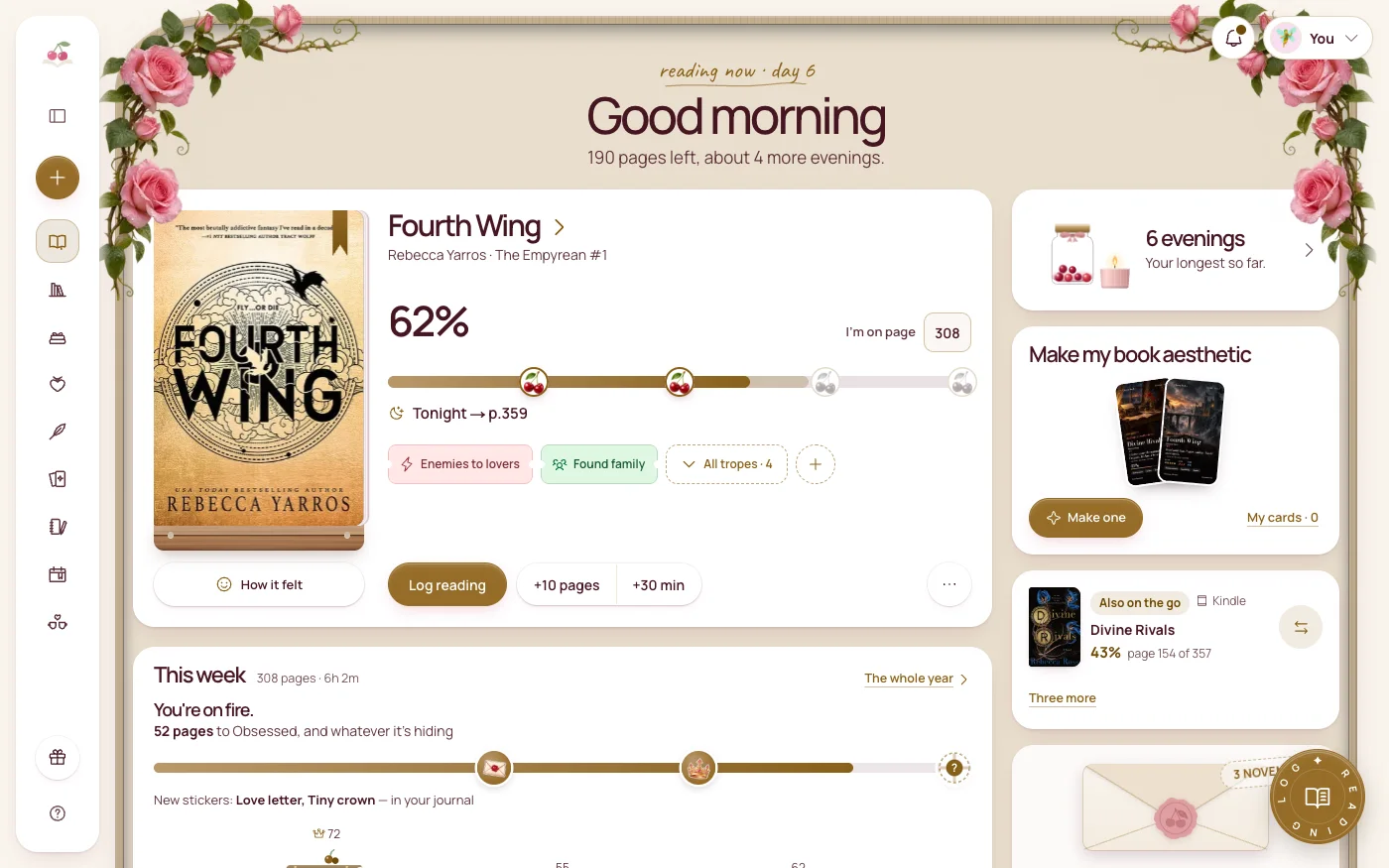
Cherry Books is a web app, and it is better to say so plainly: it is not in the App Store. You open it in Safari, add it to your Home Screen with the steps above, and it opens from its own icon without the browser bar. It works offline, and the same app works in the browser on your tablet and laptop.
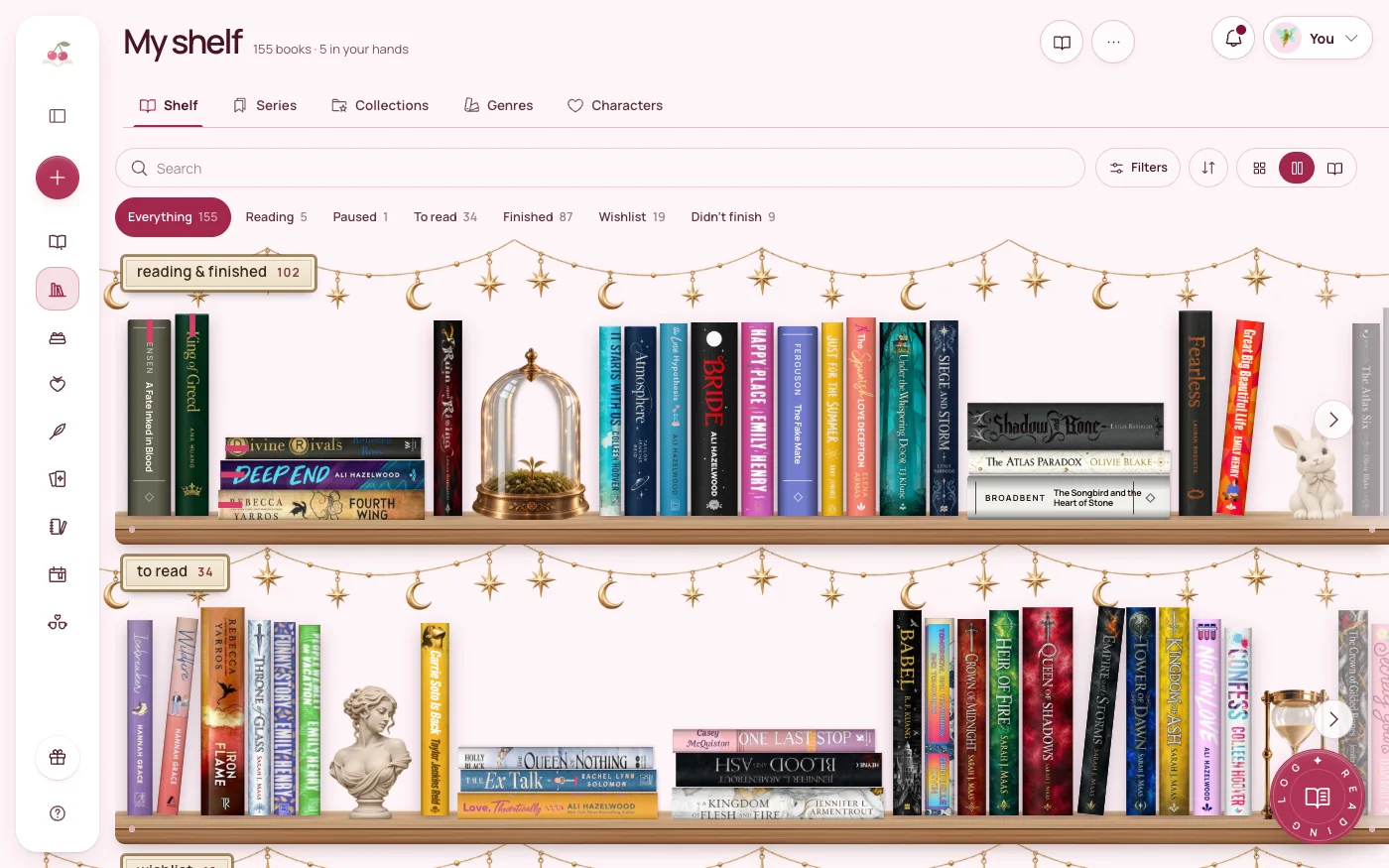
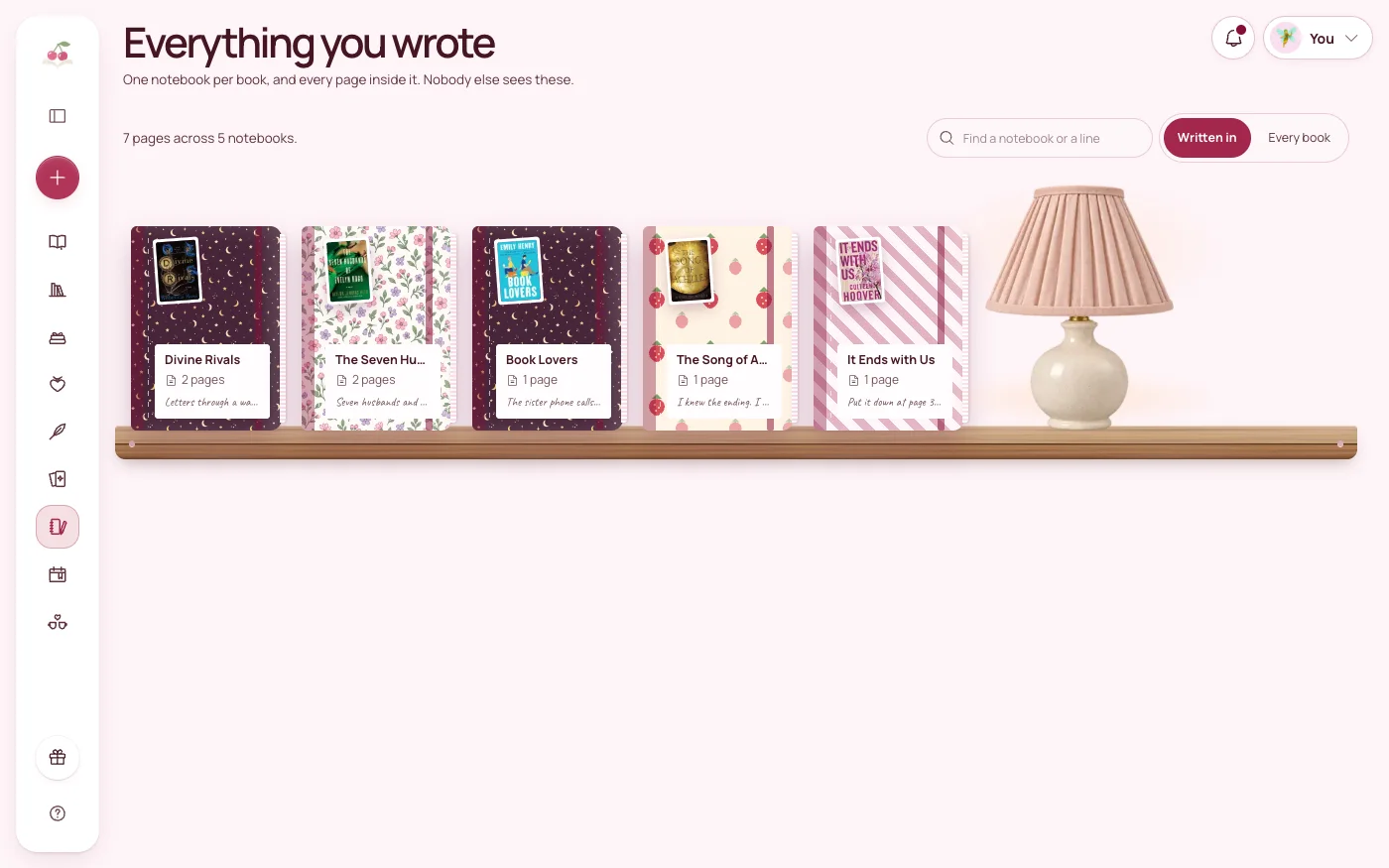
Inside, it is built for romance readers: a shelf with Reading, Paused, To read, Finished, Wishlist and Didn't finish, an Up next shelf, spice and tear meters from 0 to 5, trope tags and a separate Content warnings field, a notebook for every book and a quote wall. You can import a Goodreads or StoryGraph CSV, and export a copy of everything in one file whenever you like. Everything you write is private.
If you want to see how it compares with the big App Store trackers, read our comparison of book tracker apps.
The short version
- Pick a tracker that logs a page in seconds and works offline.
- Make sure it has room for spice, tears, tropes and warnings, not only stars.
- A web app is a real option: Safari, Share, Add to Home Screen, Open as Web App, Add.
- Test offline use and your laptop before you commit.
- Export a copy of your shelf now and then, and keep it safe.
The best tracker is the one you still open after a long day. Make it one tap away.
Try Cherry Books free for 7 days
Keep your notebooks, quotes, TBR and reading progress together. A payment card is required for the 7-day subscription trial. Cancel before the trial ends to avoid a charge; the monthly plan is $7.99 after the trial.
Keep reading
Best Book Tracker Apps Compared: Goodreads, StoryGraph, Fable and Cherry Books
An even-handed look at Goodreads, StoryGraph, Fable and Cherry Books as book tracker apps: real pros and cons, and how to choose for your reading style.
How to Start a Digital Reading Journal (and Actually Keep Using It)
Learn how to make a digital reading journal you'll enjoy using, with simple layouts, book notes, quotes, and reading reflections.

How to Move Your Goodreads Shelf to Another App (Export and Import Guide)
Export your Goodreads library as a CSV, check the file and import it into a new reading tracker without retyping a title. StoryGraph export included.