How to Move Your Goodreads Shelf to Another App (Export and Import Guide)

On this page
Years of reading history should not be hostage to one website. The good news is that moving your library takes about ten minutes, and you do not have to retype a single title. You export a file from the app you use now and hand it to the one you want next.
This guide covers the Goodreads export step by step, what to check in the file, how to avoid the common import problems, and what the process looks like in Cherry Books. The first half applies to any tracker that accepts a CSV, so you can follow it whichever app you are moving to.
Before you start
- Use a computer if you can. The export lives on the Goodreads website, and some readers report that the option does not appear in the phone app.
- Give it a minute. Goodreads prepares a fresh copy of your library, and a big library can take a little longer before the download link appears.
- Keep the original. Save the exported file somewhere safe and never edit it directly. It is your backup if anything goes wrong later.
Step 1: Export your library from Goodreads
- Sign in on goodreads.com and open My Books.
- Under Tools, choose Import and export.
- Click Export Library.
- When the dated download link appears, save the CSV file. It is usually called goodreads_library_export.csv.
The file includes the fields you would expect: title, author, ISBN, your rating, your shelves, the dates, your own review text and page counts. It is a plain table, so you can open it in Excel, Numbers or Google Sheets to have a look.
Step 2: Check the file before you import it
A two-minute inspection saves a lot of tidying later. Open the CSV in a spreadsheet and look at four things.
- The row count. Compare it with the number of books Goodreads says you have. A few books missing is worth knowing about now.
- Ratings. A rating of zero normally means not rated, not terrible. Check that your five-star favourites look right.
- Dates. Read dates are what make year-in-books recaps possible. If many are blank, that is a limit of the source data, not the import.
- Shelves. Goodreads exports its standard read, currently-reading and to-read shelves alongside any custom shelves you made. Custom shelves are often where romance readers hid their tropes and heat levels, so see whether they are present.
Step 3: Import it into your new tracker
Most trackers have an import option in their settings or onboarding. Look for these qualities, which separate a good import from a stressful one.
- A preview showing every book before anything is added.
- Duplicate handling, so running the import twice does not double your shelf.
- A way to undo the import afterwards.
- Clarity about where the file goes. Some importers read it entirely on your device; others upload it.
How it works in Cherry Books
In Cherry Books, the import is part of the first-run setup and also lives in the library. The steps are:
- Choose where your books are now: Goodreads, StoryGraph, a spreadsheet or CSV, or a sheet you paste in.
- Hand over the file. It is read on your own phone or computer and nothing is uploaded.
- Check the columns. The app guesses which column is which from the headings and the cells, and you can change anything it got wrong.
- Look at the preview, untick anything you do not want, and see which books are already on your shelf.
- Choose Bring over and your finished books land on your shelf, the ones you are reading go to Reading now, and the ones you meant to read go to Up next, ready to sort into piles.
Covers are fetched in the background, so a book shows its colours until its jacket turns up. If something looks wrong, there is an Undo the import button that puts the shelf back exactly as it was. Spreadsheet imports can also carry extra columns such as ISBN, dates, review, tags, format, spice and series.
Moving from StoryGraph instead
The process is the same with a different export button. On thestorygraph.com, go to your profile, then Manage Account, then Export StoryGraph Library, and generate the export. Download it when it is ready and import it exactly as you would a Goodreads file.
No file? Other ways to get your books in
- Scan barcodes. Point your phone at the back of each paperback and add the whole stack in one sitting.
- Paste a list. One title per line, with the author after a dash if you know it.
- Photograph your bookcase. Cherry Books can read the spines and give you a list to tick; this one comes with a plan.
- Search. Look up a title in any language and add it by hand.
After the move
- Compare the totals. Make sure the number of finished books roughly matches what you started with.
- Sort your wish piles. If hundreds of to-read books arrived at once, do not try to sort them all in one evening. Our guide to managing a TBR that has gotten out of hand has a gentler method.
- Add what the old app could not hold. Heat levels, tears and trope tags are the fields people usually want after a move. See how to track your reading as a romance reader for a setup that stays light.
- Keep the old account for a while. There is no rush to delete it. If you are unsure whether to switch at all, read what to check before leaving Goodreads.
Moving a shelf is mostly a matter of knowing where the export button hides. Once you have the file, you are never locked in again, and that is a pleasant thing to know about any app you use, including ours: Cherry Books exports your whole library in one file at any time, even after you cancel. You can try the import yourself during the free 7-day trial.
Try Cherry Books free for 7 days
A reading tracker for romance readers: spice and tear meters, tropes, quotes, series, buddy reads and a year recap. Cancel before day 7 and nothing is charged, then it is from $4.99 a month.
Keep reading

Looking for a Goodreads Alternative? What Romance Readers Should Check First
Thinking of leaving Goodreads? An eight-point checklist for romance readers, plus a low-risk way to test an alternative without losing your shelf.
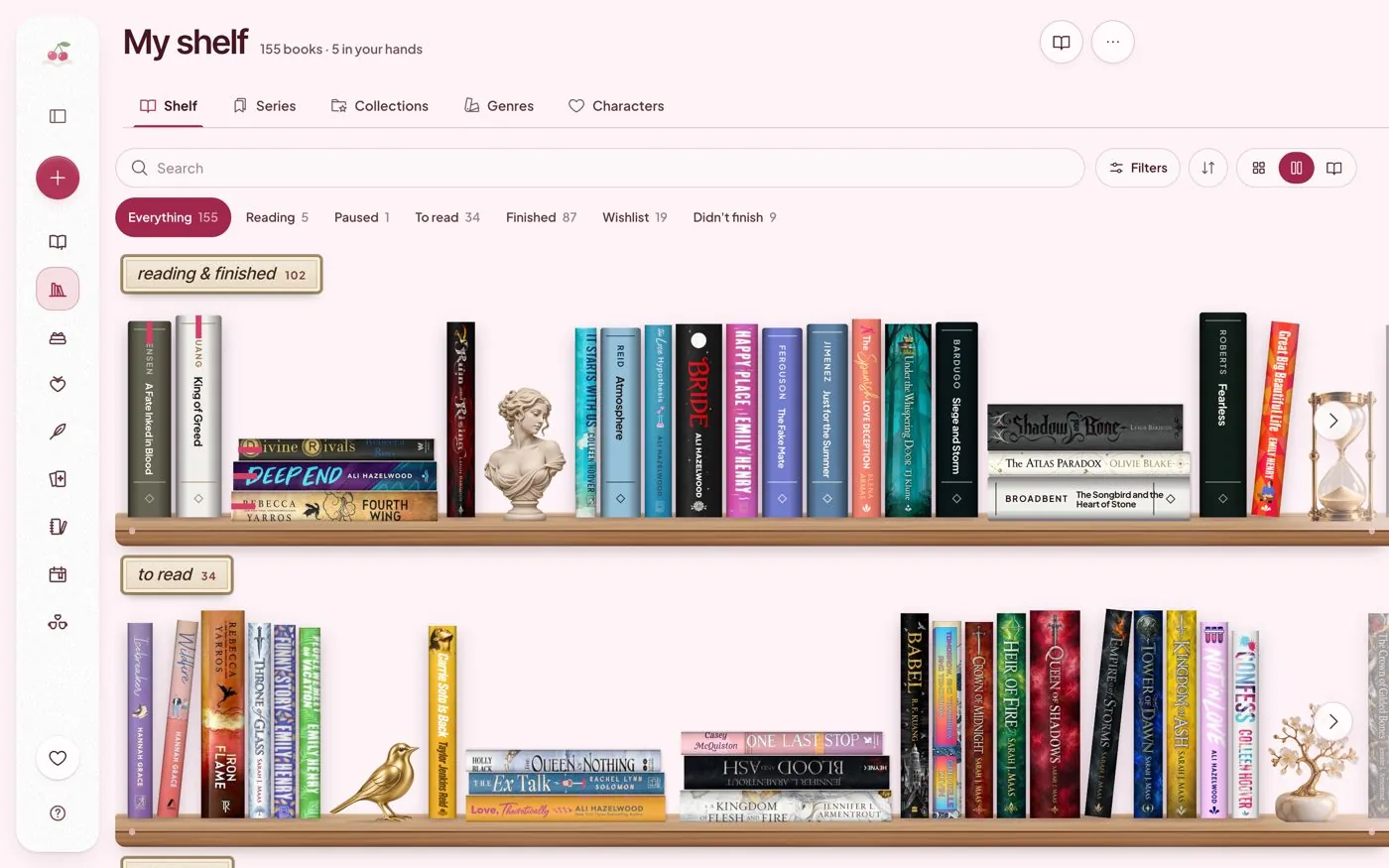
Best Book Tracker Apps Compared: Goodreads, StoryGraph, Fable and Cherry Books
An even-handed look at Goodreads, StoryGraph, Fable and Cherry Books as book tracker apps: real pros and cons, and how to choose for your reading style.
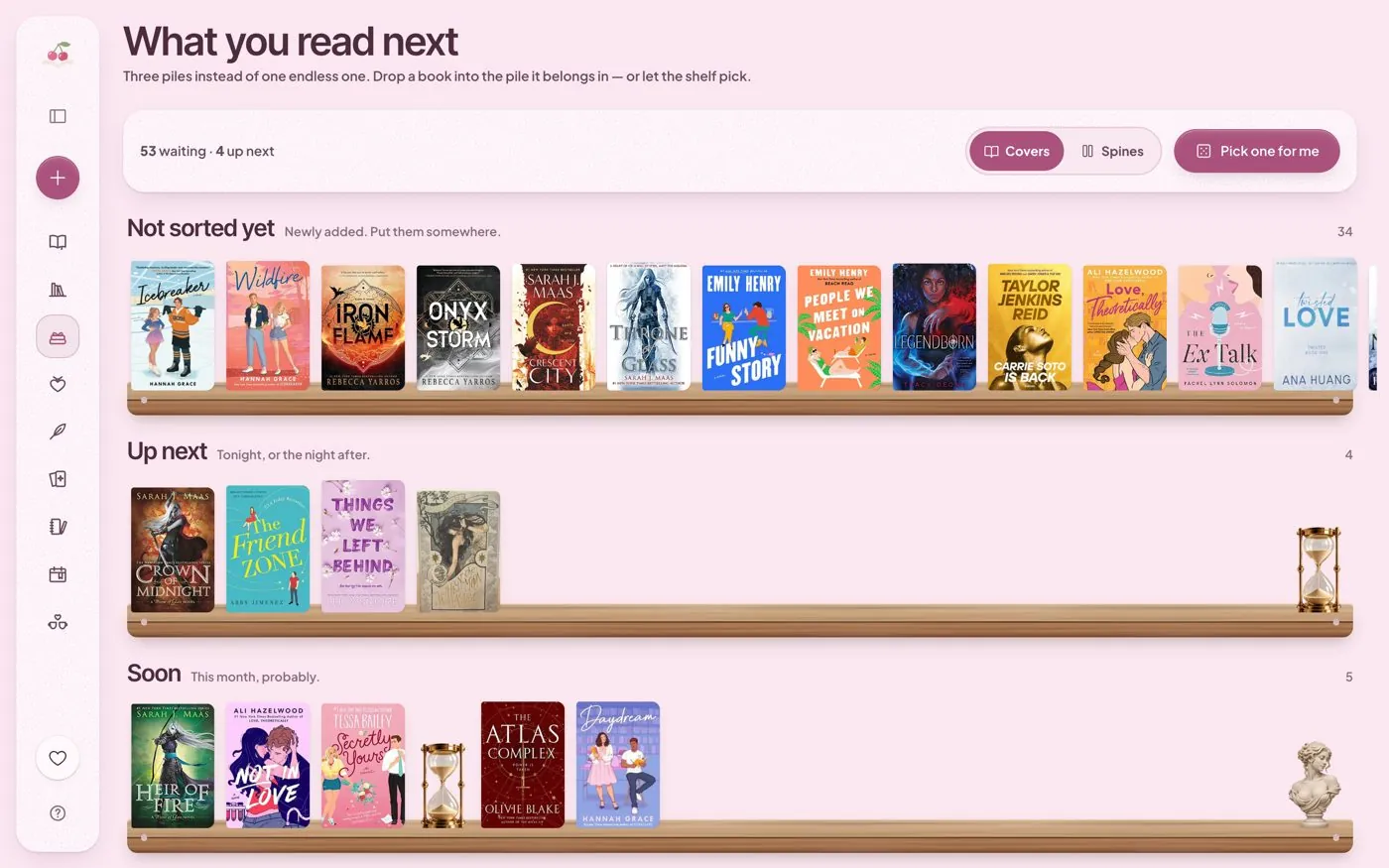
How to Manage a TBR That Has Gotten Out of Hand
A calm method for taming a huge to-be-read list: three piles, a short up-next shelf, a wish list with a basket and a random pick for undecided nights.